Alerts
Alerts watch your workspace and notify you when something needs attention: a recurring error, a run that swallowed an error, an agent stuck in a loop, or a metric crossing a threshold you set. You configure what to watch and where to deliver; Rius evaluates continuously and records every firing until you acknowledge it.
Configuring alerting is an admin action: creating, editing, enabling, or disabling alerts, the workspace-wide alerting switch, and everything about distribution channels. Members see the alerts and their firings, and can acknowledge a firing. See Roles and permissions.
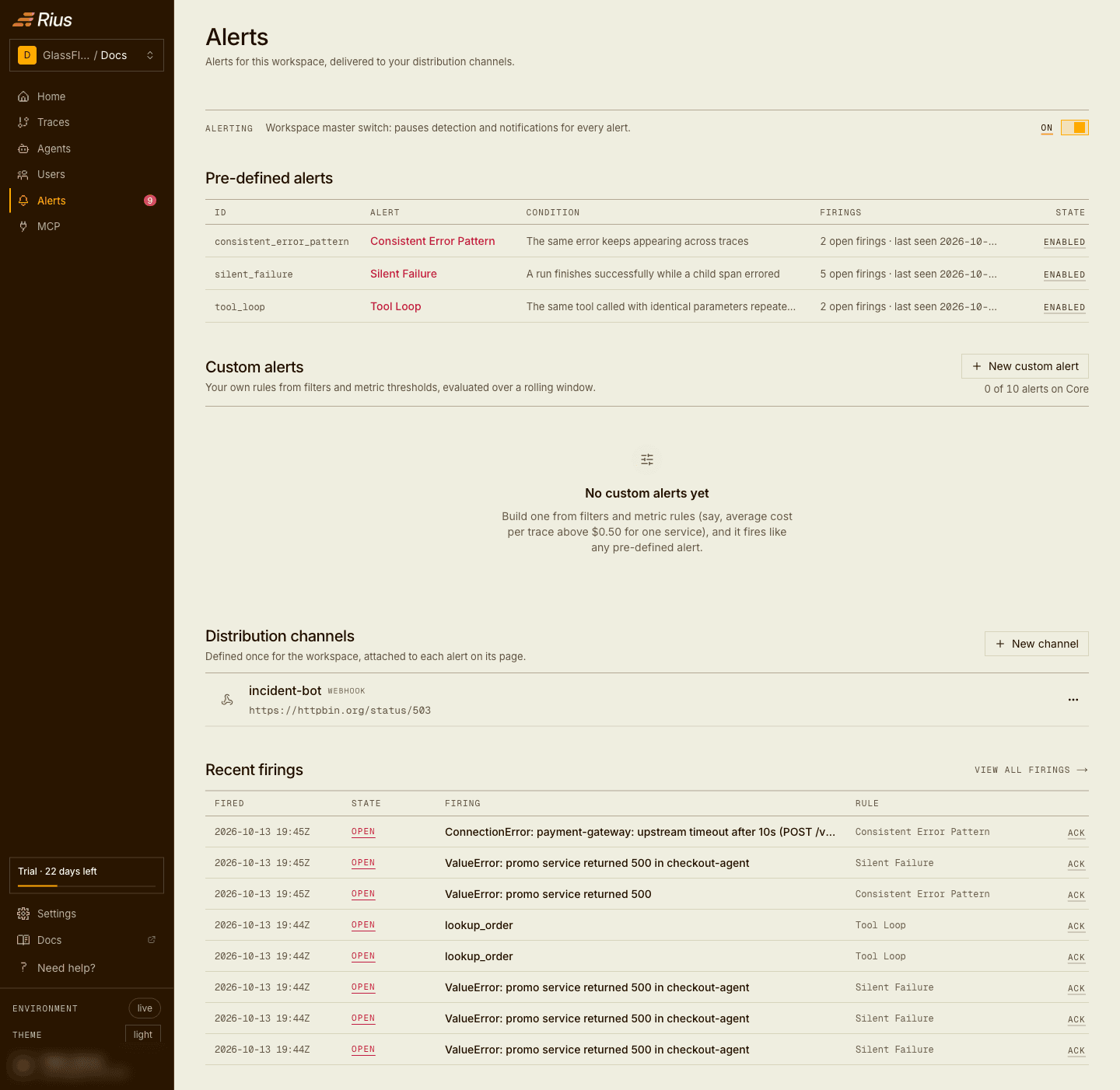
The Alerts page
The page has four sections:
- Pre-defined alerts: curated detectors Rius ships, including Consistent Error Pattern, Swallowed Error, and Tool Loop. Enable or disable each one and tune its thresholds on its details page (Swallowed Error’s errored-span threshold is set only through the MCP server).
- Custom alerts: rules you build yourself on workspace metrics, scoped by filters.
- Distribution channels: where firings get delivered, including webhook, email, and Slack.
- Recent firings: the newest firings across every alert, newest first. Clicking one opens the firing’s own page, and View all firings opens the Firings page.
Alerts and findings name the kind of problem by a catalog id such as
CF-15. Failure modes lists every id
and what it means.
The Alerts entry in the sidebar carries a count of open firings nobody has acknowledged yet. It is hidden at zero and reads 99+ above 99, so you can see from any page that something is waiting.
Firings and acknowledgment
A firing is one occurrence of an alert’s condition. Each alert’s details page lists its firings with open ones first. Acknowledging a firing marks it handled with your name and time; acknowledged firings stay in the list, dimmed, so the history remains auditable.
Clicking a firing opens its own page with the full picture: when it opened, when the condition was last seen, the affected traces, each linked to the trace view, and the delivery list, one row per channel the firing was sent to with the outcome of each attempt. For a Consistent Error Pattern firing, the affected traces are every trace the firing counted, ten at a time with Load more; other kinds show the traces the detector kept with the firing. When root-cause analysis is on, the page also carries the analysis agent’s report: what failed, since when, and its reading of the cause, written back as soon as the run completes. View all in Traces opens the trace list pre-filtered to the firing’s signature and time window. A Consistent Error Pattern firing that has run for longer than 31 days lists its last 31 days of traces, and the page says so; the count still covers all of it.
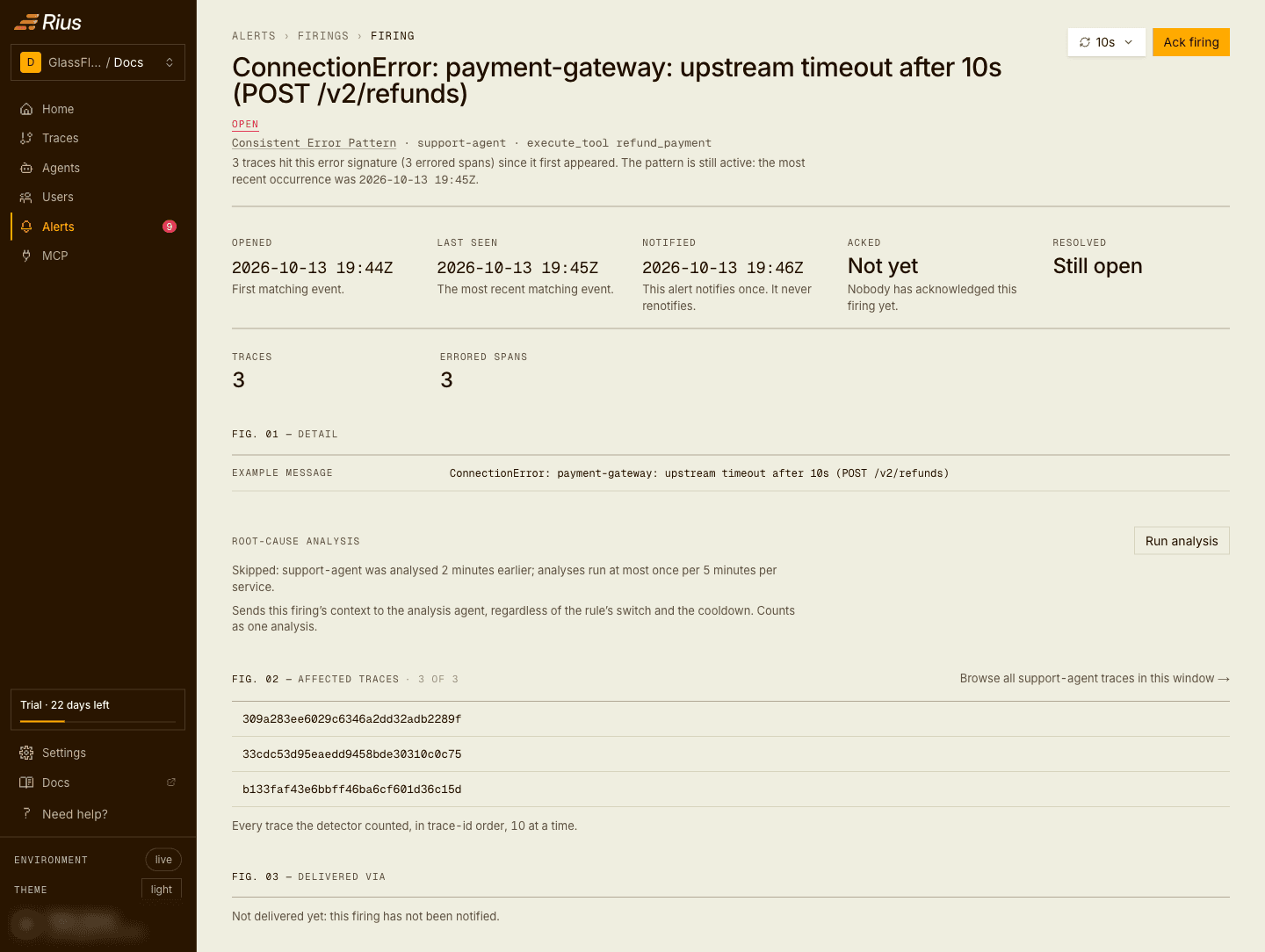
While an alert is enabled, every firing is delivered to each channel attached to that alert. Disabling an alert stops evaluation; its open firings stay as they are until you enable it again.
All firings
The Firings page lists every firing across the workspace’s alerts, most recently seen first. Open is the default and Resolved shows the history; an acknowledged firing stays under Open until it resolves. While no filter is set, the tab reads Open (N) with the workspace’s count of open firings.
You can narrow either list with:
- Has analysis: only firings with a root-cause report.
- Unacked only: only firings nobody has acknowledged.
- Search titles: a text match on the firing’s title.
- Service and Step: an exact match on the firing’s service or step.
- A time window: Any time, the default, or firings last seen within the Last 15m, 1h, 1d, 7d, or 30d.
Every control, the tab included, is kept in the page URL, so a filtered view is a link you can share and a reload keeps it.
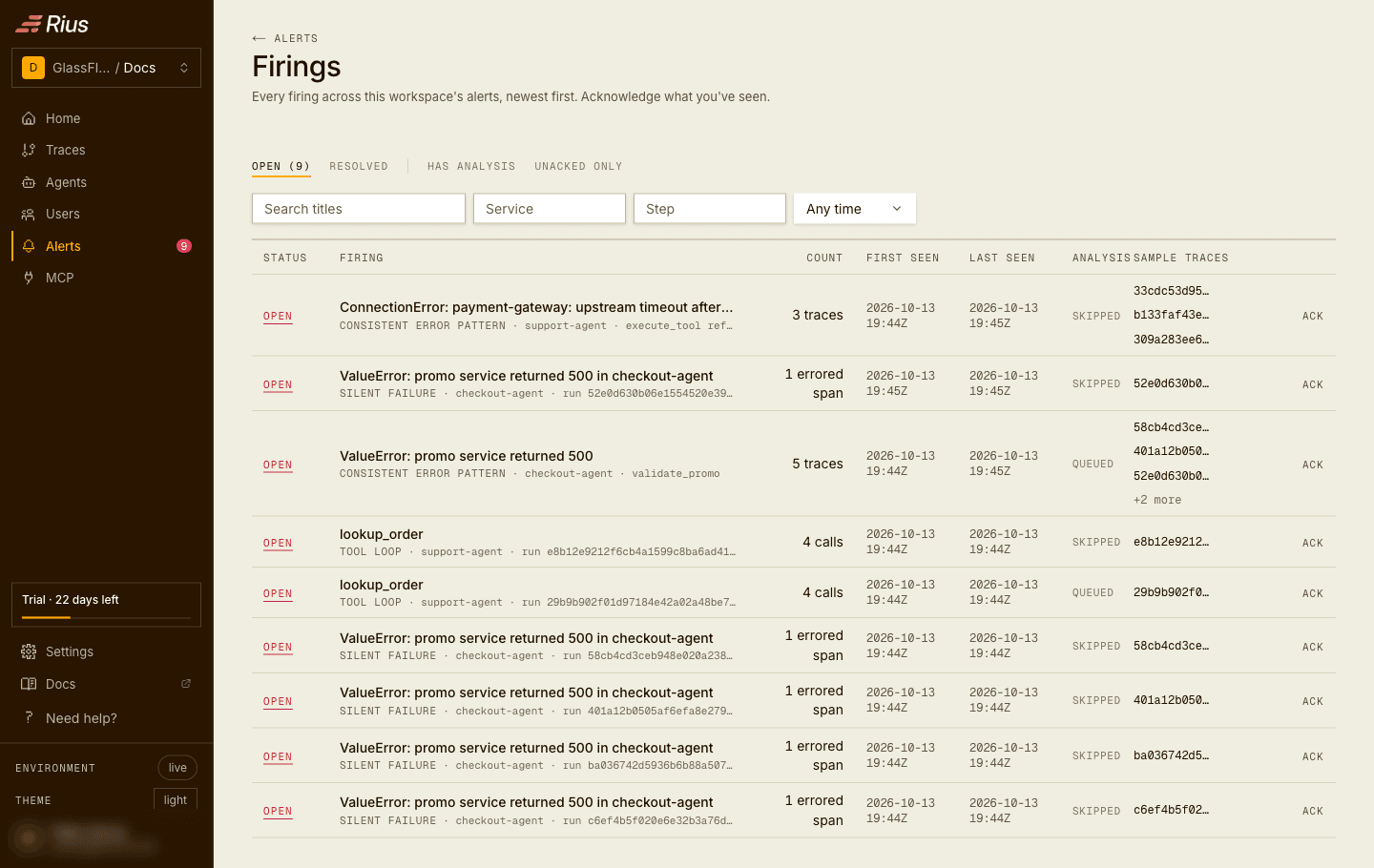
Each row shows the firing and the alert it came from, how many times it matched, when it was first and last seen, its analysis status, and sample traces (three shown, the rest behind +N more). Open firings can be acknowledged from the row with Ack. Click Load more at the bottom to go further back through the filtered list.
Firing lifecycle
A firing opens the first time an alert’s condition matches and stays open while it keeps matching; last seen moves forward with each match. Once the condition has stopped matching for two hours, the firing resolves on its own and drops out of the open list; if the same condition comes back later, that is a new firing, unacknowledged. Acknowledging a firing does not close it: it records who saw it and stops any further notifications for it, and the firing still resolves on its own when the condition clears.
Rules are evaluated every minute while they have no open firing, and every five minutes while one is open, so timings are approximate to that cadence.
Each alert has a Renotify setting for how often to repeat the notification while a firing is open and nobody has acknowledged it: off, the default, sends one notification per firing; every N minutes, from 5 to 1440, repeats it on that interval until the firing is acknowledged or resolves. Each repeat appears as a row in the firing’s delivery list. An open firing with renotify on shows when the next reminder goes out.
Saving a change to an alert’s configuration resolves its open firings and starts evaluating the rule afresh, so a condition that still holds opens a new firing under the new configuration.
The Alerting switch at the top of the page is the workspace-wide master switch. Turning it off pauses detection and notifications for every alert at once, without touching each alert’s own enabled state; turn it back on and the alerts resume exactly as they were configured. Use it for a planned migration or a noisy incident, when you want silence without unpicking individual rules. It is an admin action.
Each alert also has a Root-cause analysis switch. When it is on and the workspace has root-cause analysis enabled, every firing of that alert is handed to the analysis agent; see Root-cause analysis for the workspace-level setting.
Rule health
A rule that keeps failing to evaluate, for example because its query can no longer run, is detected and stopped automatically. One failing rule never holds up the others. The rule’s chip, on the Alerts page and on its own page, shows where it stands in place of Enabled:
| Chip | Meaning |
|---|---|
| Failing | The last evaluation failed. The rule is still being evaluated. |
| Suspended | Detection stopped after repeated failures. The rule finds nothing new until you resume it. |
The rule’s own page prints the error the evaluation hit and when it happened, and for a suspended rule, how many runs failed in a row. To resume a suspended rule, fix the cause and save any change to the alert. Any saved edit re-arms it, including switching it off and on again; waiting does not.
Root-cause analysis on demand
Admins can run an analysis for a firing with Run analysis on the firing page, whatever the alert’s switch says and without waiting for the cooldown. It counts as one analysis against the budget.
When the workspace’s analysis budget is used up, firings are not analyzed and show Over budget, and Run analysis is not offered on them. When analyses are limited, the Intelligence section of Settings → Workspace shows how many are used this period and when the count resets. A firing whose analysis was accepted but never reported back shows No report. User summaries count against the same budget, one analysis each.
Analysis status
The Firings list and each firing’s page show where its analysis stands:
| Status | Meaning |
|---|---|
| Off | Analysis is off for this alert or workspace |
| Queued | Waiting to run |
| Running | The analysis agent is working on it |
| Report | Done; the report is on the firing’s page |
| Skipped | Skipped by the cooldown, at most one analysis per service every 5 minutes |
| Over budget | The workspace’s monthly analysis budget is used up |
| Failed | The run failed |
| No report | Accepted, but no report came back |
A firing that was never analyzed shows a dash. Run analysis is not offered while an analysis is queued or running, or on a firing that already has a report or is over budget.
Next steps
- Pre-defined alerts: what each detector fires on, and its knobs.
- Custom alerts: build your own rules on workspace metrics.
- Distribution channels: webhook payloads, email, and the Slack app.
More specific questions are answered in Answers.