Usage and access
The console’s MCP page shows everything that calls the Rius MCP server: your coding agents, scripts, CI jobs, and teammates in their editors. Use it to see who is connected, which tools they call, whether the calls come back with anything useful, and what each key is allowed to do.
The page covers every workspace in your organization, except the Access tab, which shows the workspace you have selected. All times are UTC. It has six tabs: Overview, Clients, Sessions, Tools, Queries, and Access.
A client here is anything that calls Rius over MCP. That is different from the agents you instrument with the SDK, which are on Agents. One agent can be both, if it sends traces and also queries them. To connect a client in the first place, see Connect.
What you can answer here
Is my self-improving agent getting useful answers?
An agent that reads its own traces to improve is only as good as what it gets back. Check the Tools tab. A high Empty rate means the tool often found nothing: either nothing happened, or the agent is passing filters or time windows that miss its data. A high Asked again rate means the first answer didn’t help. Check the filters and windows the agent passes; if they look right, tell us, because a tool that often answers empty or gets asked again usually needs better defaults or a clearer description.
Which agent is reading what?
Queries lists every tool call with the key, client, tool, and workspace. Use it to confirm a supervisor agent really checks the agents it is responsible for, and nothing else.
Is an agent trying to do more than it should?
Needs attention on the Overview flags keys asking for scopes they don’t
have. For example, an agent denied channels:manage is trying to read or
change where alerts go. Decide whether it should be able to, then grant the
scope or change the agent. See Fix a denied scope.
Can I tell my agents apart?
The Clients tab shows which clients are Named, Recognised, or Anonymous. In a system with several agents, give every caller its own key and name, or you can’t tell which agent made which call.
Overview
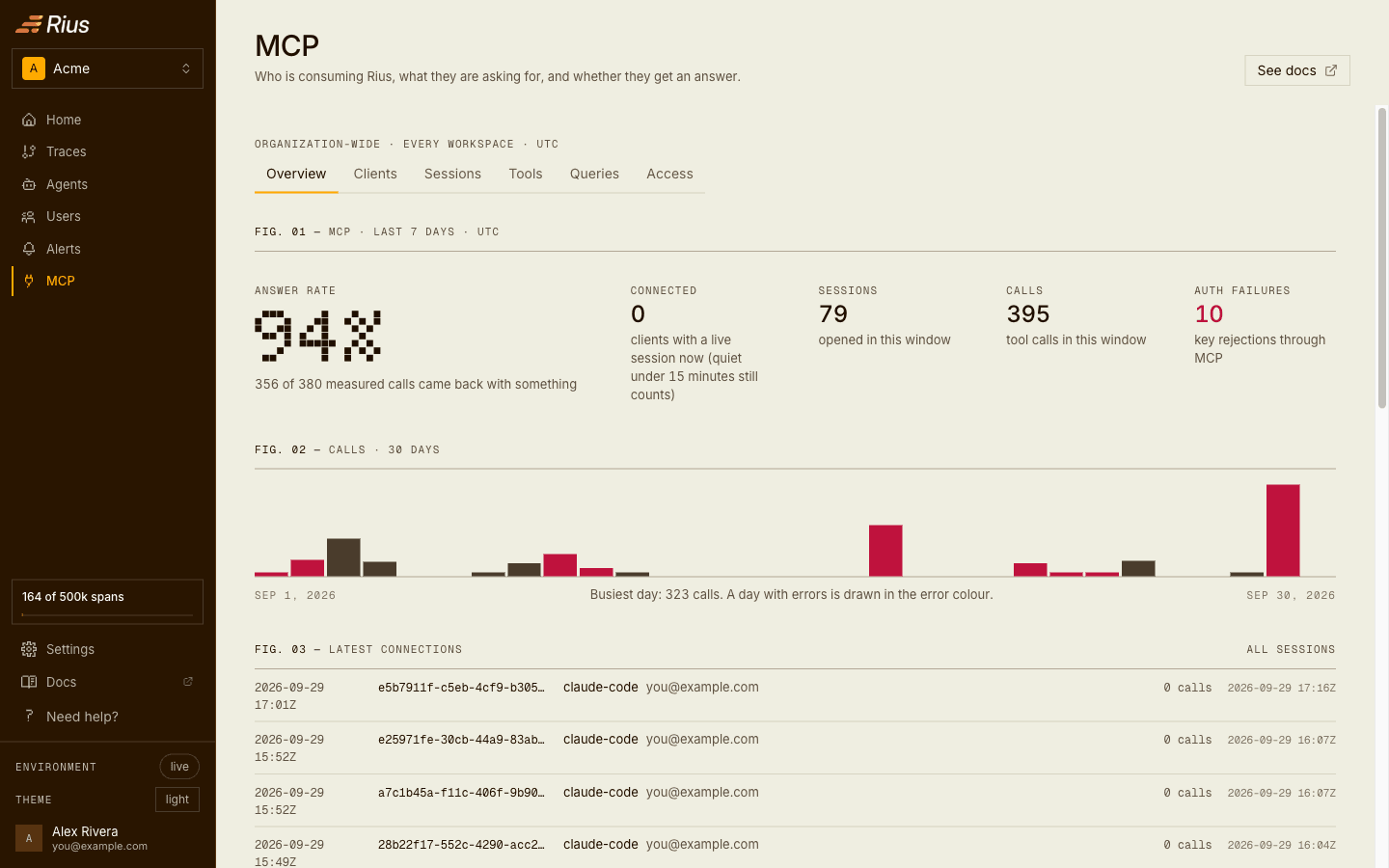
Overview covers the last 7 days.
| Tile | What it shows |
|---|---|
| Answer rate | Share of measured calls that came back with something, for example “356 of 380 measured calls came back with something”. |
| Connected | Clients with a live session right now. A session that has been quiet for less than 15 minutes still counts. |
| Sessions | Sessions opened in the window. |
| Calls | Tool calls in the window. |
| Auth failures | Calls rejected because of the key: invalid, revoked, or missing a scope. |
Below the tiles:
- Calls per day over the last 30 days. Days with errors are drawn in the error colour.
- Latest connections: the most recent sessions, with client, actor, number of calls, and when each ended. All sessions opens the Sessions tab.
- Needs attention: problems that crossed a threshold, such as a client nobody has named, or a key asked for a scope it does not have, which names the key, the scope it asked for, and when it last happened.
Clients
Clients lists the clients that connected in the last 7 days, most recently seen first. A client is the credential it connects with (your sign-in or an API key) plus the name it reports about itself. Each row shows its sessions, calls, answered rate, and when it was last seen. Every client is in one of three tiers:
| Tier | Meaning |
|---|---|
| Named | A person named it, it is a signed-in user, or it declares a name with the X-MCP-Agent-Name header. Every call can be traced to someone. |
| Recognised | It reports a name for itself, such as claude-code, but nobody has named it yet. All the numbers are there. |
| Anonymous | It reported no name. Its key still tells it apart, but nothing says who it is until someone splits its key or it sets X-MCP-Agent-Name. |
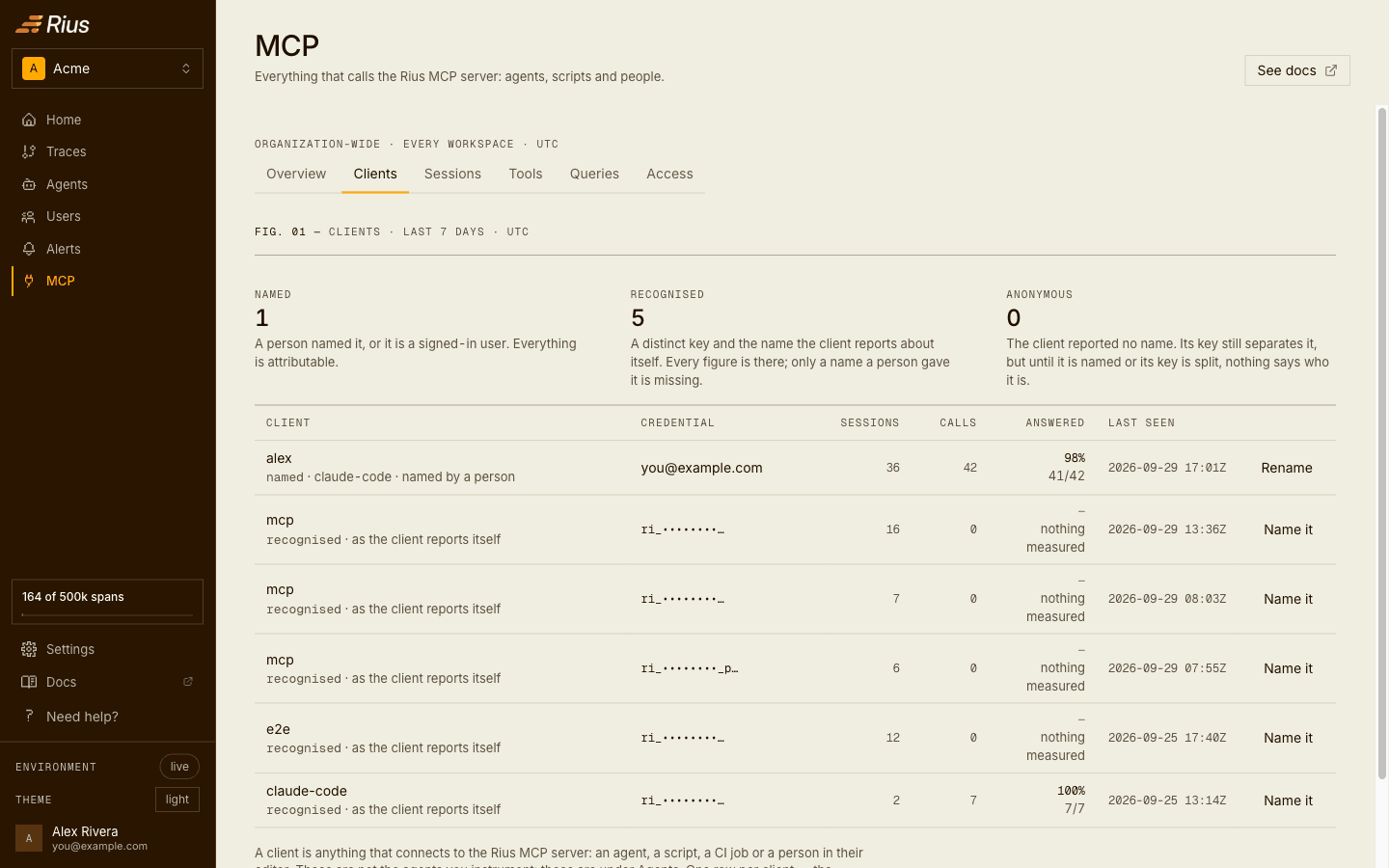
Click Name it to give a recognised client a name, or Rename to change
it. An anonymous client has no reported name to attach a label to: name its
key on the Access tab, split the key, or have the client set
X-MCP-Agent-Name (see Name your agent).
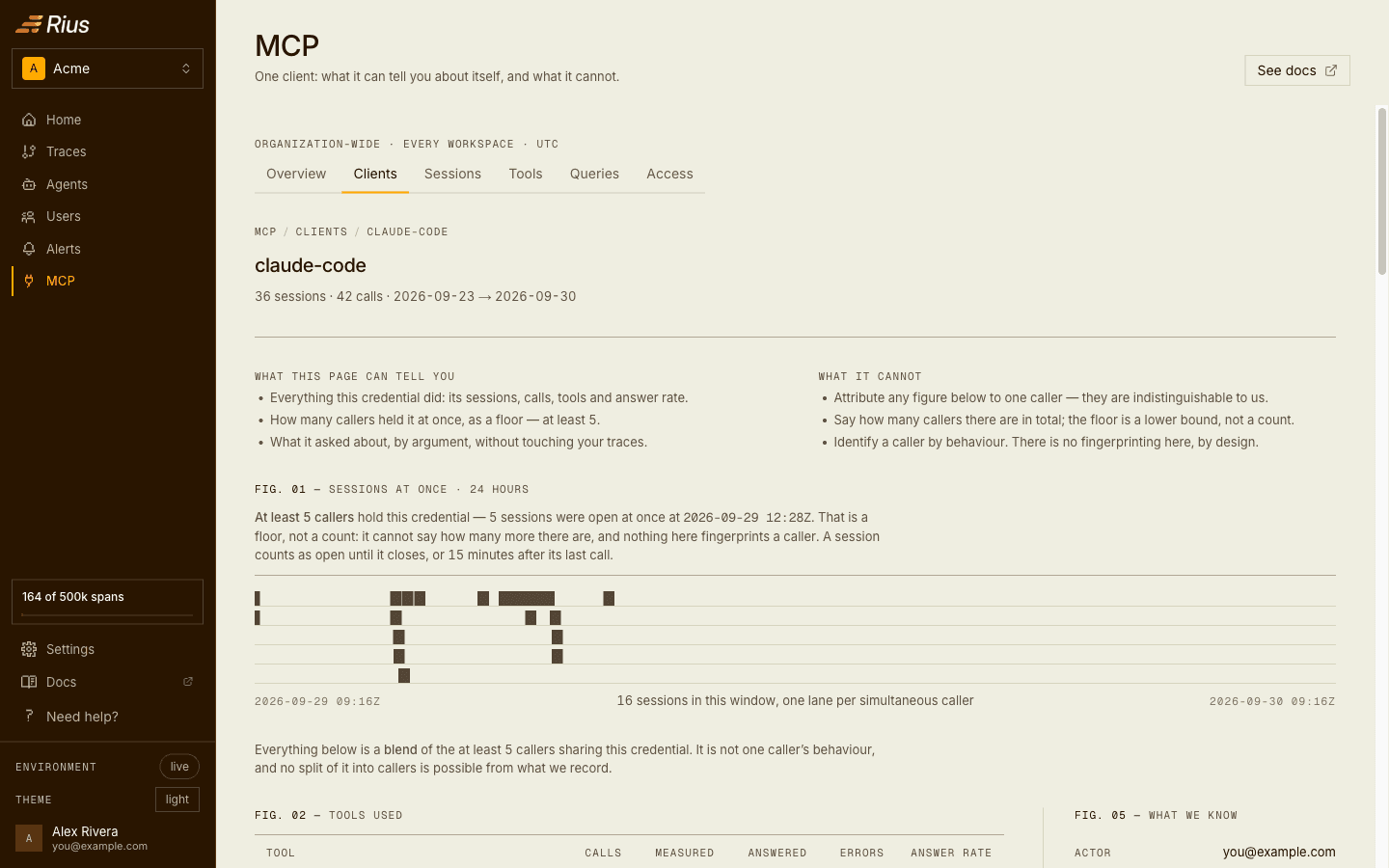
Open a client for its own page: how many sessions it had open at once, the tools it used and how often they answered, what it asked about, and its sessions. When several callers share one key, both the row and the page say so, and the page shows how many held it at once, as a lower bound. Their figures are blended, since Rius can’t tell them apart; give each caller its own key to separate them.
Sessions
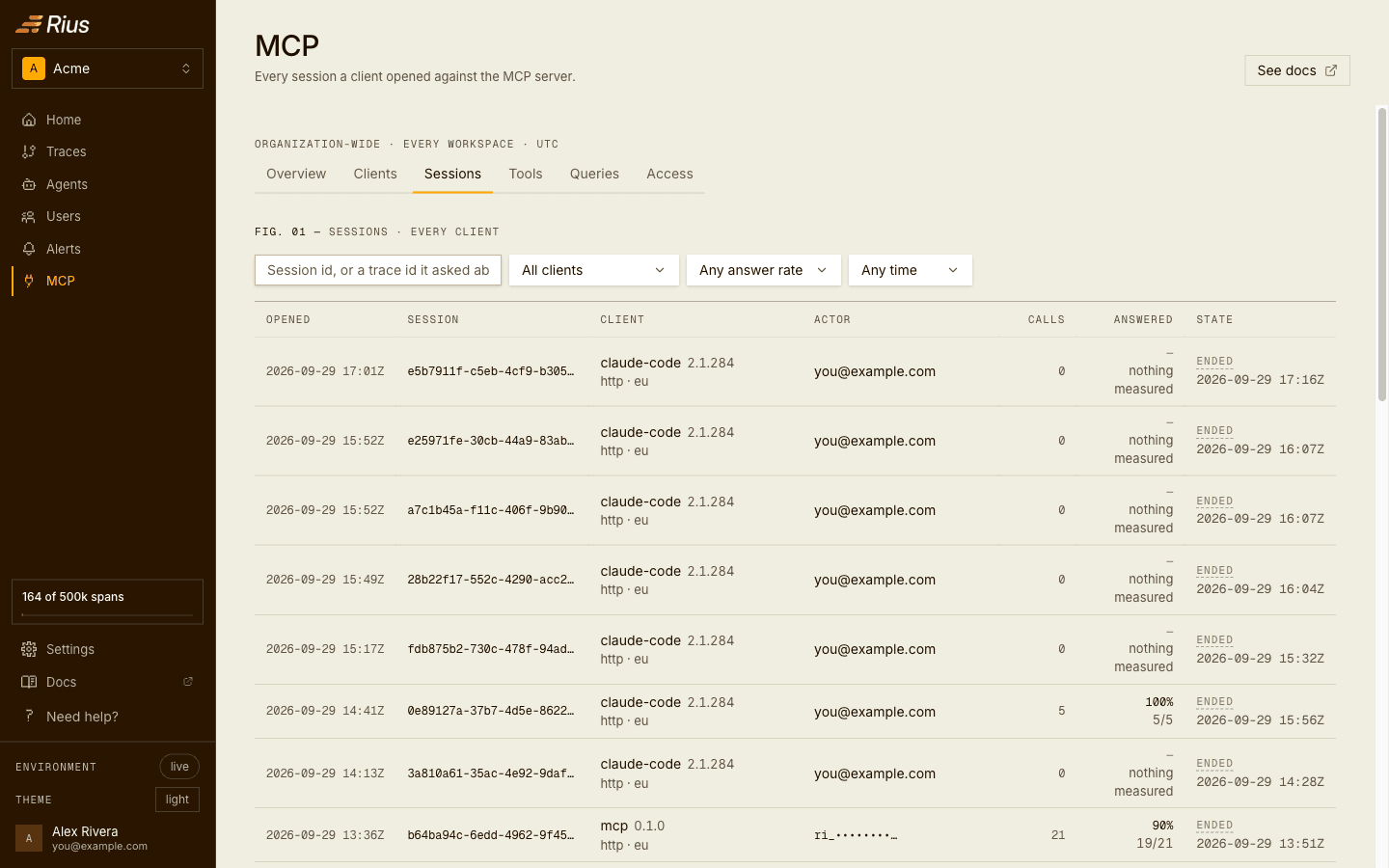
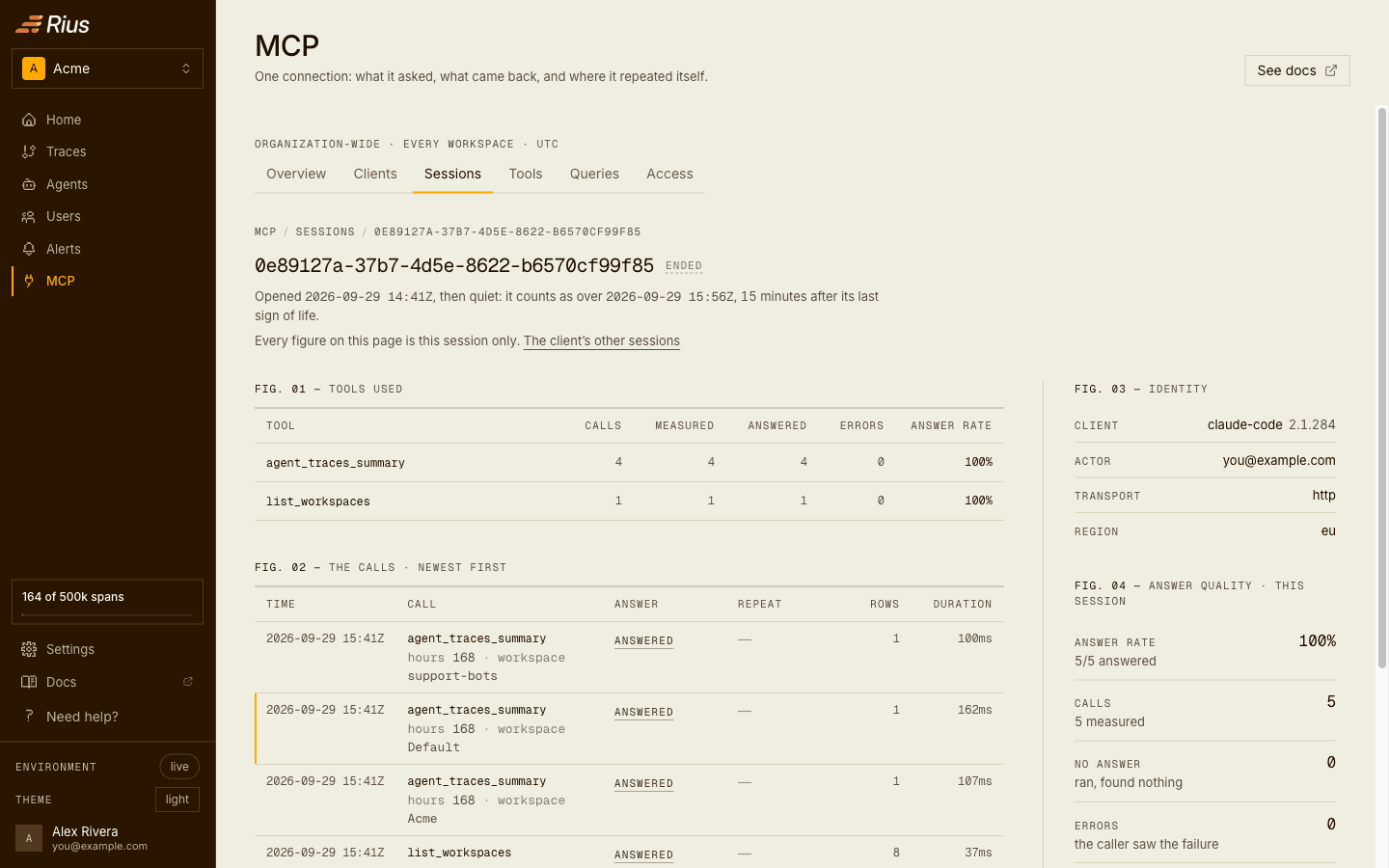
Sessions lists each MCP session, newest first.
| Column | What it shows |
|---|---|
| Opened | When the session started. |
| Session | The session ID. |
| Client | Client name and version, with transport and region, for example claude-code 2.1.284 and http · eu. |
| Actor | The signed-in user or the API key. |
| Calls | Tool calls in the session. |
| Answered | Share of measured calls that came back with something. |
| State | Whether the session is open, or when it ended. |
Filter by client, answer rate, and time. Search by session ID, or by a trace ID the session asked about, to go from a trace to every session that looked at it.
A session ends when the client disconnects, or when it has been idle long enough for the server to close it. A connection that authenticated but never made a call still shows up, with 0 calls.
Open a session to see every call it made, newest first, with the answer, rows returned, and duration. A call marked asked again repeated the same tool with a different question within 30 seconds; looping means the same question again. The side panel shows the client, the caller, the transport, and the region.
Tools
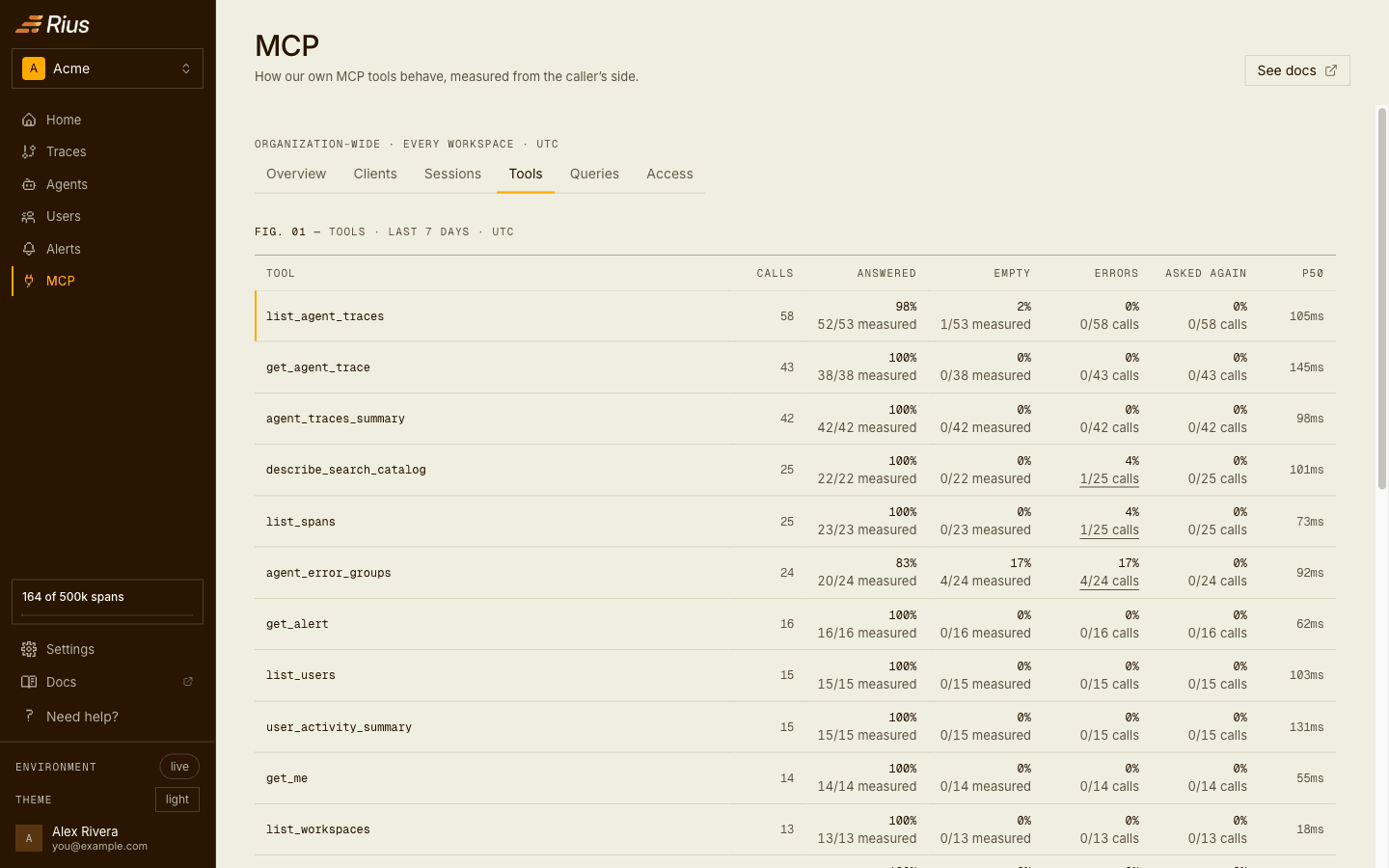
Tools has one row per MCP tool over the last 7 days, most called first. Everything is measured from the caller’s side.
| Column | What it counts |
|---|---|
| Calls | Every call. |
| Answered | Calls that returned at least one row, out of the calls that reported a row count. |
| Empty | Calls that returned zero rows, out of the calls that reported a row count. |
| Errors | Calls that failed, out of every call. Click the count to open those calls in Queries. |
| Asked again | Calls where the previous call to the same tool, in the same session, asked a different question within 30 seconds. |
| P50 | Median latency. |
What the numbers usually mean:
- High Empty: callers ask for data Rius doesn’t have in that window. That can be correct, when nothing happened, or it can mean the filters and time windows they pass miss the data.
- High Asked again: the first answer didn’t give the caller what it needed, so it asked differently. That points to the tool’s defaults or its description.
- High Errors on one tool: often a key without the right scope. For
example, keys can’t create other keys, so every
create_api_keycall made with a key fails.
Click a tool to see its calls in Queries.
Queries
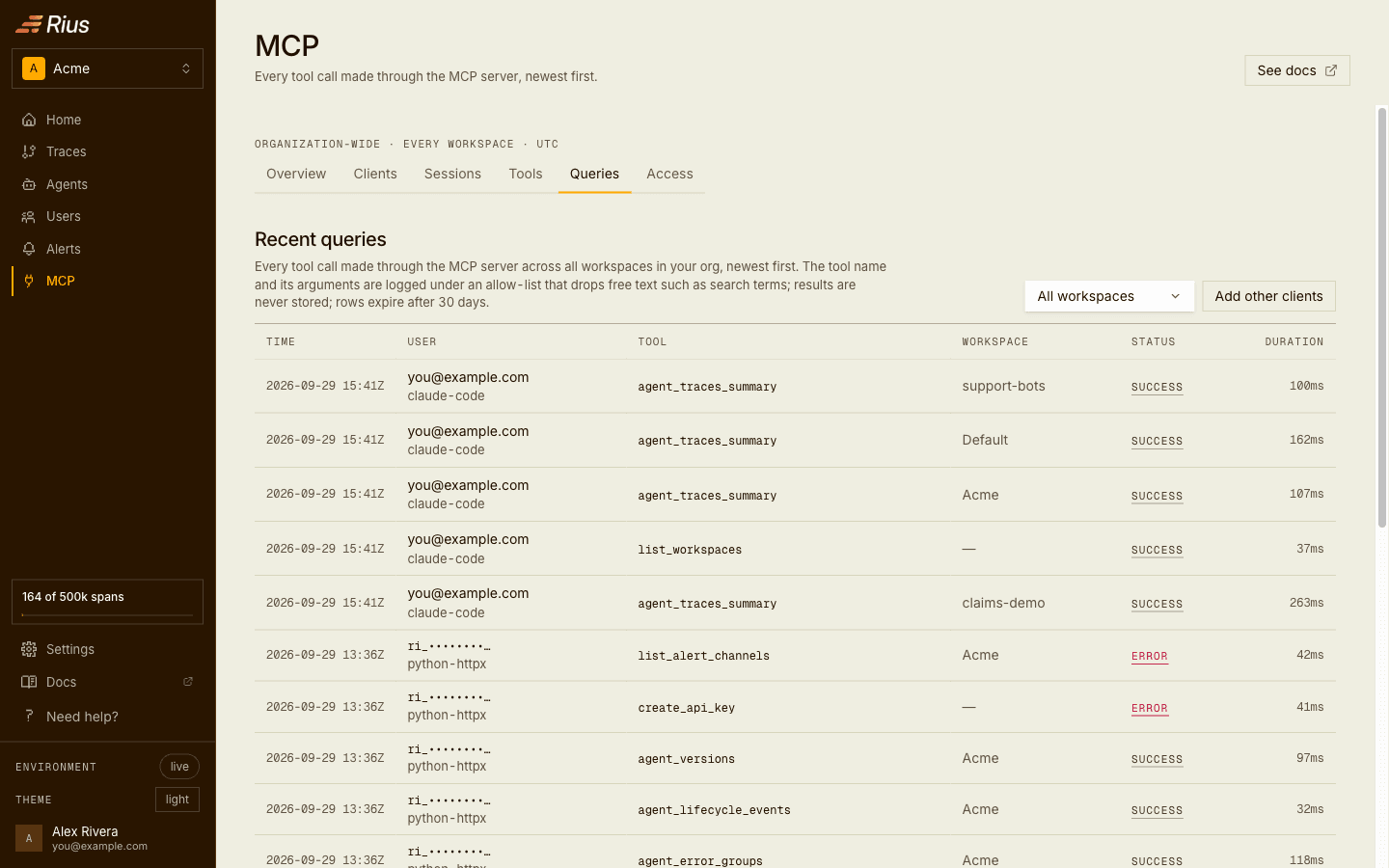
Queries is the call log across every workspace in your organization,
newest first: each call with its user or key and client, the tool, the
workspace, the status (SUCCESS or ERROR), and the duration. Tools that
aren’t tied to a workspace, such as list_workspaces, show — in the
workspace column. Filter by workspace; the Tools tab and a client’s page link
here with the filter already set.
Once a client is connected, Add other clients in the header opens the setup step for connecting another one, right above the log.
Arguments are kept under an allow-list and results are never stored; see What Rius logs about MCP calls. Rows are kept for 30 days.
Access
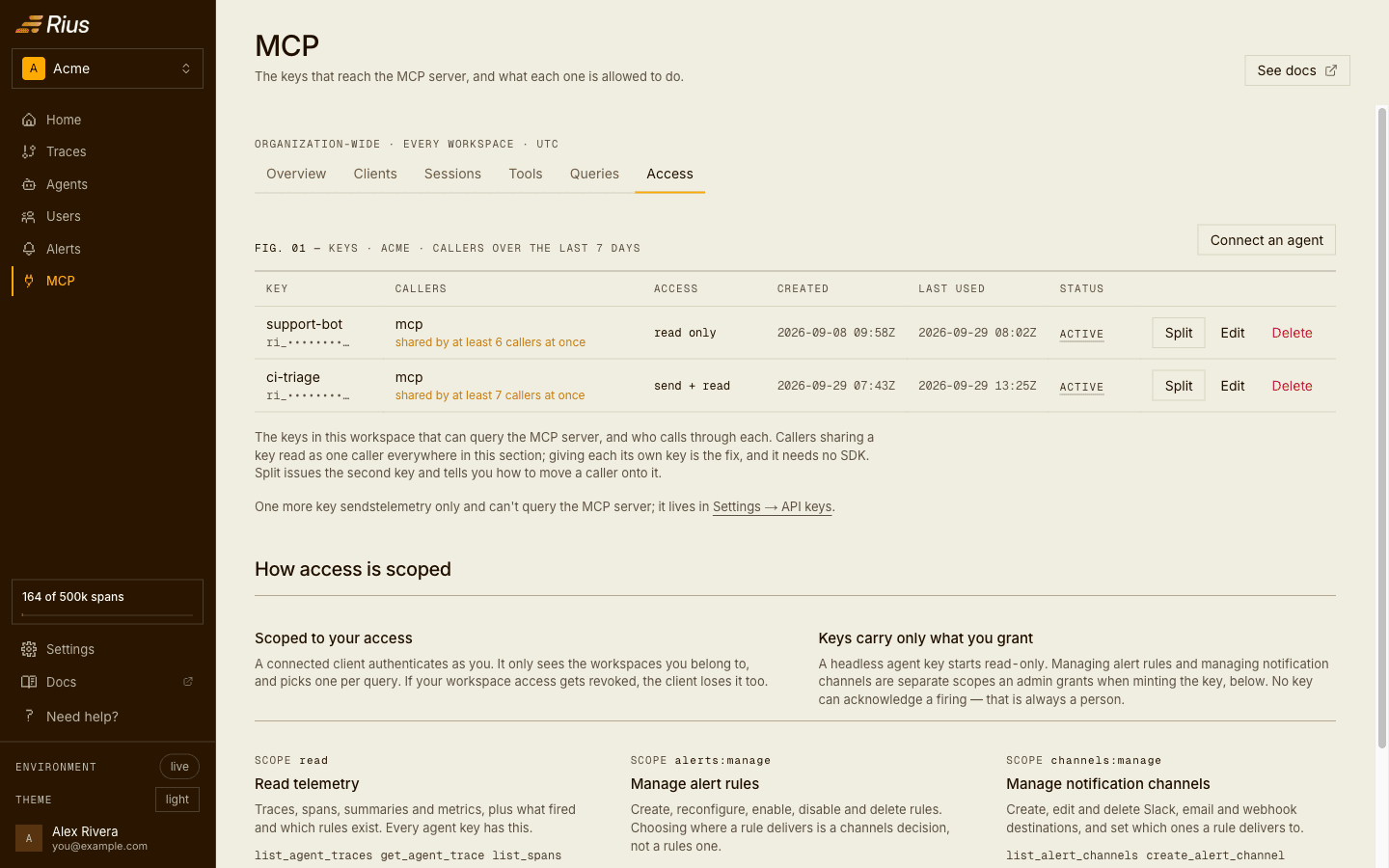
Access lists the API keys in the selected workspace that can query the MCP server, with the callers seen on each key over the last 7 days.
| Column | What it shows |
|---|---|
| Key | The key’s name and prefix. |
| Callers | The clients using this key. A warning such as “shared by at least 6 callers at once” means several clients use the same key. |
| Access | read only: can query MCP. send + read: can also send telemetry. |
| Created / Last used | When the key was created and last used. |
| Status | Whether the key is active. |
Admins can act on each key:
- Split, on a key that several callers share, issues a second key and shows how to move one of the callers onto it.
- Edit, on an active key, renames it and switches it between read only and send + read, without issuing a new key. Other scopes are edited under Settings → API keys.
- Delete revokes the key. Revoking can take up to a minute to reach the MCP server.
Connect an agent creates a new key for a headless client; see Headless connections.
A key that can only send telemetry can’t query the MCP server, so it
isn’t listed here. Keys created under
Settings → API keys are ingest-only unless you add
read.
How access is scoped
A client connects in one of two ways:
- Signed in as you. The client sees only the workspaces you belong to, picks one per query, and acts with your role: every member can read and acknowledge alerts, and only admins can manage alerts or create keys. If you lose access to a workspace, the client does too.
- With an agent key. The key belongs to one workspace, carries no user
identity, and can do only what its scopes allow. Keys made with Connect
an agent always include
read.
| Scope | Allows | Tools |
|---|---|---|
read | Reading traces, spans, agents, users, summaries, metrics, fired alerts, and alert rules | list_agent_traces, get_agent_trace, list_spans, agent_traces_summary, describe_search_catalog, list_agents, agent_error_groups, agent_lifecycle_events, agent_versions, compare_agent_versions, list_users, user_activity_summary, workspace_metrics_overview, list_metrics_catalog, list_alerts, get_alert, list_alert_rules, describe_alert_catalog, list_workspaces, get_me |
alerts:manage | Creating, changing, enabling, disabling, and deleting alert rules | create_alert_rule, update_alert_rule, delete_alert_rule |
channels:manage | Listing, creating, editing, and deleting Slack, email, and webhook destinations, and choosing which ones a rule delivers to | list_alert_channels, create_alert_channel, update_alert_channel, delete_alert_channel |
Even listing channels needs channels:manage, because the list shows each
destination’s webhook URL, recipients, or Slack channel. Rules and channels
are separate scopes on purpose: choosing where an alert goes is a
different decision from choosing what triggers it.
No key can acknowledge an alert or create another key. ack_alert works only
for a signed-in client, because acknowledging records who saw the alert, and
a key isn’t a person. For the full rules, see
Access and permissions.
Common tasks
Name a client
Go to Clients and click Name it on the row. From then on the client
shows as Named on the Clients tab. Sessions and Queries still show the
name the client reports. To set a name
from the client’s side instead, send the X-MCP-Agent-Name header; see
Name your agent.
Split a shared key
When Callers shows a key as shared, click Split. Rius issues a second key and shows how to move one caller onto it. Only the key in that caller’s configuration changes. After the split, each caller has its own row in every tab.
Fix a denied scope
When Needs attention shows that a key asked for a scope it does not have, decide whether that agent should have the scope:
- It should: open Settings → API keys, click Edit on the key, and add the scope.
- It shouldn’t: change the agent’s instructions or tool list so it stops trying. The denials do no harm, but they add noise.
Check a new connection
Connect a client (see Connect) and ask it one question, such as
“list my agents”. Open MCP → Sessions: your session should be there with
1 call and an answered rate. Then open Queries to see the list_agents
call.
Troubleshooting
Connected is 0, but there are calls. Those calls came from sessions that have since ended. Connected counts only sessions open right now.
Answer rate shows “Unavailable”. Nothing in the window reported a row count, so there was nothing to measure. A client or session in the same state shows “nothing measured”. This is common for sessions that connected but made no calls.
Auth failures are rising. A client is using a revoked or deleted key, or a key without the scope it needs. Needs attention shows which key, and the Status column on Access shows whether it is still active.
All my scripts show up as one client. They share a key. Split it, or give each script its own key.
Next steps
- Connect: add the Rius MCP server to Claude Code, Cursor, and other clients.
- Tool reference: every tool, its arguments, and the scope it needs.
- Example workflows: what to ask once a client is connected.
- Alerts: the rules and channels that
alerts:manageandchannels:managecontrol.